2.7. Adding Links
In addition to links embedding within pages, Links can be created as discrete content items. Having links as discrete items lets you do things like organizing them in folders, setting keywords on them to facilitate grouping in lists and search results, or include them in navigation.
Add a link by clicking the menu choice in the Add new... menu for a folder:
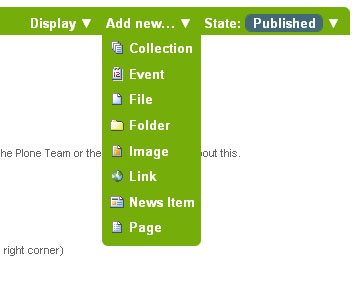
add-new-menu.png
You will see the Add*Link* panel:
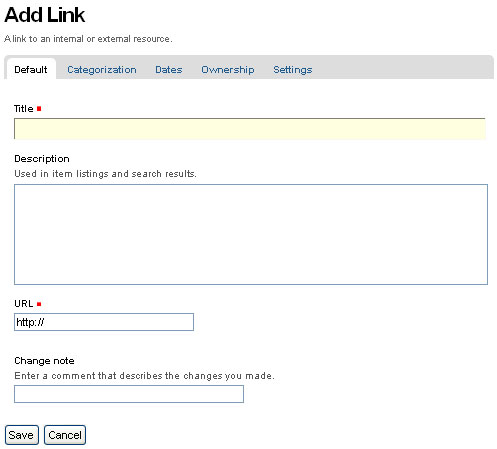
Good titles for links are important, because the titles will show up in lists of links, and because there tend to be quite a number of links held in a folder as a set.
Paste the web address in the URL field or type it in. There is no preview feature here, so it is best to paste the web address from a browser window where you are viewing the target for the link to be sure you have the address correct.
2.7.1. The Link Object in Use
A link object will behave in the following ways, depending on your login status, or permissions.
- If you have the ability to edit the link object, when you click on the link object you'll be taken to the object itself so that you can edit it (otherwise you'd be taken to the link's target and could never get to the edit tab!)
- If you don't have the ability to edit the link object, when you click on the link object you'll be taken to the target of the link object. Likewise, if you enter the web address of the link object directly in your browser, you'll be taken directly to the link's target. The link object in this case acts as a redirect.
